
How Excel Workflows Help Small Businesses Manage Appointments
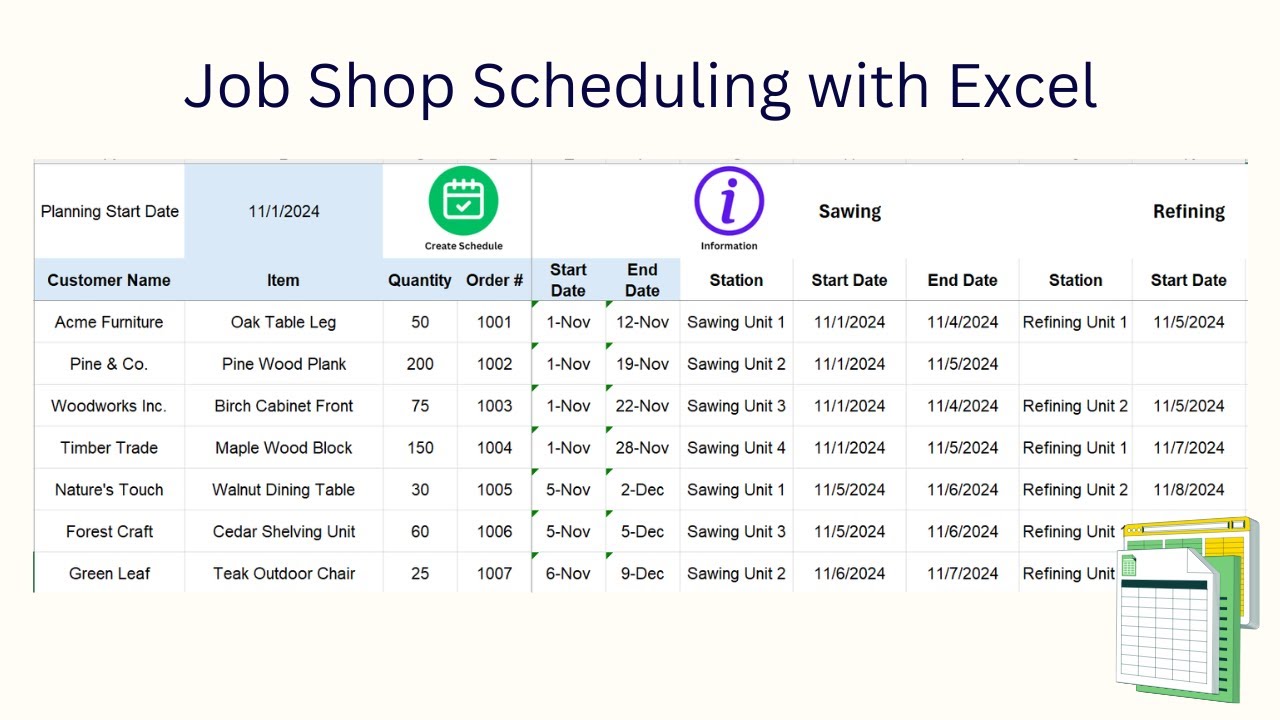
I have seen many small businesses lose appointments for reasons that look small at first. A customer calls during a busy hour. Someone writes the details in a notebook. Another person adds the appointment to a spreadsheet later. A reminder is sent only when someone has time. Then the customer forgets, the slot stays empty, and the team loses revenue that could have been protected with a better workflow.
That is why I still like Excel for appointment management. It is not a full scheduling system, but it gives small teams a clean place to organize customer names, dates, times, staff assignments, statuses, and follow ups. Most business owners already understand Excel well enough to start. They do not need a large software rollout just to stop missing basic appointment details.
The key is to treat Excel as a workflow, not as a static list. A good Excel appointment workflow should show what came in, what was confirmed, what still needs action, what was completed, and what needs follow up. Once that structure is in place, the business can add automation around the parts that still take too much manual work.
Why Excel still works for appointment tracking
Excel works because it is flexible. A dental office, salon, home service company, repair shop, consultant, or small clinic can all use the same basic spreadsheet idea, then adjust the columns around their own process. One business may care most about service type and staff member. Another may need payment status, location, customer source, or notes from the last visit.
The value is not just the sheet itself. The value is the shared habit it creates. When every appointment follows the same format, staff members stop guessing where the latest information lives. They can filter today’s bookings, check which appointments are not confirmed, and see which customers need a follow up message.
Microsoft’s Excel schedule templates show why spreadsheets still work for schedules, timelines, projects, and business planning. The same idea applies to appointments. Excel gives owners a simple base where they can build order before adding more advanced tools.
| Excel Field | Why It Matters for Appointments |
|---|---|
| Customer name | Connects the booking to the right person |
| Phone number | Supports calls, texts, and reminders |
| Email address | Gives another option for confirmations |
| Appointment date | Keeps the schedule organized by day |
| Appointment time | Helps prevent double booking |
| Service type | Shows what the customer requested |
| Staff member | Assigns ownership to the right person |
| Status | Tracks whether action is still needed |
| Notes | Keeps special requests and context visible |
This setup is simple, but it solves a real problem. It puts the appointment details in one place. That alone can reduce confusion, especially when more than one person handles calls, bookings, and follow ups.
How I would build the appointment workflow
I would not start with formulas. I would start with the process. The first question is simple: what happens from the moment a customer asks for an appointment until the final follow up is done? Once that flow is clear, Excel becomes easier to structure.
A practical workflow begins when the customer requests a time. The staff member adds the customer’s details to the sheet. The appointment starts as “New” or “Pending.” Once the time is agreed, the status changes to “Booked.” After the customer confirms, it becomes “Confirmed.” After the visit, it becomes “Completed.” If the customer misses it, the status becomes “No show.” If the customer cancels, it becomes “Cancelled.”
This status-based approach is useful because it tells the team what to do next. A row marked “New” needs contact. A row marked “Booked” may need confirmation. A row marked “Confirmed” needs a reminder. A row marked “Completed” may need a review request, invoice, or next appointment message.
| Workflow Stage | Excel Status | Staff Action |
|---|---|---|
| Customer asks for an appointment | New | Add customer details and service request |
| Staff checks availability | Pending | Find an open time slot |
| Customer accepts the time | Booked | Add date, time, and staff member |
| Customer confirms attendance | Confirmed | Send appointment details and reminder |
| Appointment is completed | Completed | Add notes and follow up if needed |
| Customer misses the visit | No show | Send a rebooking message |
| Customer cancels | Cancelled | Offer another available time |
This is where the spreadsheet starts acting like a small operating system for the appointment process. The team can filter the sheet by status and work through the day in the right order. They do not have to remember every open task because the sheet shows the next action.
Where Excel automation can save real time
Excel automation does not have to mean a complex VBA project. For many small businesses, simple automation starts with dropdowns, filters, conditional formatting, formulas, and pivot tables. These features can remove a lot of repetitive checking from the daily routine.
For example, a dropdown list can keep appointment statuses clean. Conditional formatting can highlight today’s appointments or overdue follow ups. A COUNTIF formula can count no shows for the month. A pivot table can show appointments by staff member, service type, or customer source. These are not advanced ideas, but they create better control.
This fits the type of practical automation XL Automation often discusses: reducing repeated manual work, cleaning up structured data, and making spreadsheet workflows easier to manage. For appointment-heavy businesses, the same approach can turn a messy booking sheet into a useful daily dashboard.
| Manual Appointment Task | Excel Workflow Improvement |
|---|---|
| Checking every row for today’s bookings | Filter by appointment date and status |
| Counting missed appointments manually | Use COUNTIF for no show status |
| Reviewing staff workload by eye | Use a pivot table by staff member |
| Finding customers who need follow up | Filter completed rows with blank follow up date |
| Checking unconfirmed bookings | Filter status by booked but not confirmed |
| Reviewing service demand | Group appointments by service type |
The best part is that the business can build this in stages. Start with the tracker. Add status dropdowns. Add filters. Add monthly totals. Add a pivot table when the owner wants better reporting. This keeps the workflow useful without making it too heavy for the staff.
The main problem Excel cannot solve alone
Excel can organize appointment data, but it does not solve communication by itself. This is where many appointment workflows break. The sheet may be correct, but the customer still needs a reminder. If that reminder depends on a busy staff member remembering to send a message, the workflow still has a weak point.
Missed appointments are expensive because they leave dead time in the schedule. The staff member is still available. The business still pays for that time. Another customer could have taken the slot. In small service businesses, even a few missed appointments per week can create a real revenue leak.
Text reminders can help because they are direct and easy for customers to read. A study published through the National Library of Medicine found that SMS reminders reduced missed appointment rates by 6.9 percentage points. That is why I see reminders as a workflow issue, not just a communication feature.
How Excel workflows connect with customer reminders
A clean appointment sheet can become the starting point for a better reminder process. Excel holds the appointment data. A connected tool handles the message. That way, staff members are not copying phone numbers by hand or trying to remember who needs to be contacted before the end of the day.
For example, a small business can use Excel to organize appointment details, then connect a tool like Smarfle CRM to support an appointment SMS reminder workflow when manual follow ups start taking too much staff time. This is a natural upgrade because the business keeps the structure it already understands while improving the part that affects attendance.
Smarfle CRM fits this kind of workflow because appointment reminders are part of a larger customer communication process. A business can confirm bookings, reduce forgotten visits, and follow up after the service without depending on scattered manual tasks.
A good reminder workflow may include a confirmation message right after booking, a reminder the day before, a same-day reminder, and a follow up after completion. The exact timing depends on the business. A clinic may prefer 24-hour and 2-hour reminders. A contractor may need a morning confirmation with arrival details. A consultant may need a calendar link and prep notes.
Appointment data can also improve business decisions
Once the appointment workflow is running, the same Excel sheet can help the owner see patterns. This is where the spreadsheet becomes more useful than a simple calendar. It can show which services are booked most often, which staff members are overloaded, which days have the highest cancellation rate, and which customer sources bring repeat appointments.
I would review this data at least once per month. The numbers do not need to be perfect at first. Even a basic count can reveal problems that were hidden during daily work. If one service has a high no show rate, the reminder timing may need to change. If one staff member has too many appointments, scheduling may need to be balanced. If repeat bookings are low, the follow up process may need attention.
The appointment scheduling software market is also growing because more businesses are trying to reduce manual scheduling work. Market Data Forecast valued the global appointment scheduling software market at $0.40 billion in 2023 and projected it to reach $1.88 billion by 2033. That does not mean every small business must leave Excel right away. It does show that businesses are looking for better ways to connect scheduling, reminders, and customer management.
When a business should move beyond a basic spreadsheet
Excel is a strong starting point, but it should not become a bottleneck. I usually see the breaking point when multiple staff members are updating different versions of the file, customers expect quick confirmations, reminders are still being sent by hand, and the owner has no clear view of missed appointments or follow ups.
That is the right time to connect Excel with other systems or move parts of the workflow into software that can handle customer communication. The goal is not to replace Excel just because a new tool exists. The goal is to remove the manual steps that create missed appointments, slow responses, and lost revenue.
For many small businesses, the smartest path is gradual. Keep Excel for tracking while it works. Improve the structure. Add status fields. Track no shows. Review the data every month. Then automate the reminder and follow up process when staff time becomes too valuable to spend on repeated messages.
Final thoughts
Excel can help small businesses manage appointments better when it is built around a real workflow. The sheet should not just store names and times. It should show the full path from new request to confirmed booking, completed appointment, missed visit, or follow up.
I would start with a simple appointment tracker, add clear statuses, use filters for daily work, and track no shows every month. After that, I would look at the parts that still depend on memory or manual messages. That is usually where the business gets the fastest improvement.
Excel brings order to appointment data. Connected reminder tools bring consistency to customer communication. When both parts work together, small businesses can protect more booked time, reduce missed appointments, and give customers a smoother experience.