
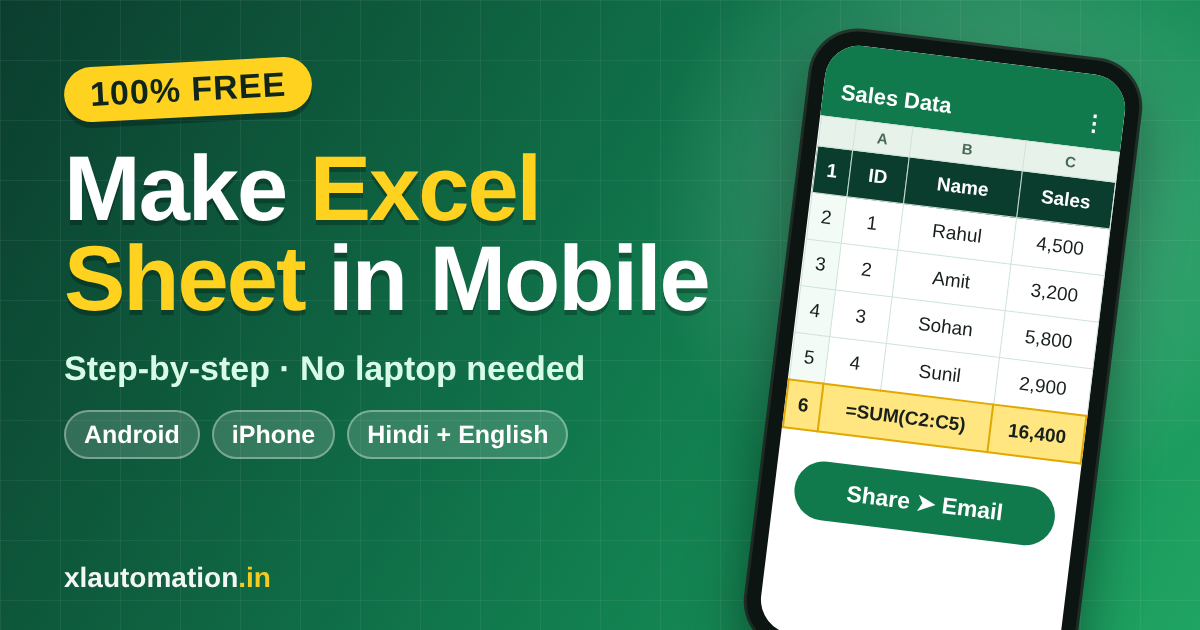
How to Make Excel Sheet in Mobile Free: Step-by-Step Guide
You can make an Excel sheet in mobile for free: install the Microsoft Excel app from the Play Store, sign in, open a new blank workbook, type your data, format it and share it by email. The whole job takes about five minutes, and you do not need a laptop.
I’m Umesh from XL Automation, and I teach Excel on my YouTube channel. Most Excel tutorials assume you are sitting at a desktop. This guide is different. It follows the two mobile Excel videos I recorded, one in Hindi and one in English, and turns them into a written walkthrough you can follow on your phone, one step at a time.
By the end you will know how to create a table, apply formatting, use the SUM formula, filter data, rename or delete sheets, and send the finished file to anyone by email.
Why I use Excel on my phone when I travel
When I travel, a laptop is the last thing I want to carry. It is heavy, it needs a bag, a charger and a table, and on a train, a bus or at a crowded airport gate there is rarely a place to open it. But urgent work does not wait for a hotel desk. A manager asks for last month’s sales numbers, a client wants a quick total, or a team needs one corrected sheet before a meeting.
That is exactly when I pull out my phone. I open the Excel app, fix or build the sheet, and send it straight from my seat. In my videos I say the same thing honestly: I do not use mobile Excel for big projects, I use it when something is urgent and I need to share a file quickly. For that job, it works.
If you travel for work, go on field visits, or are sometimes away from your desk when a request lands, mobile Excel saves you from the “I’ll send it when I reach my laptop” delay. Your phone is already in your pocket, and the free Excel app gives you the tools you need for quick tables, totals and shared files.
Typing is slower on a small screen than on a laptop keyboard, so keep mobile sheets short and simple. That is the approach this guide follows.
Quick answer: how to make an Excel sheet in mobile free
- Open the Play Store and search for “Excel”.
- Install Microsoft Excel and sign in with a free Microsoft account.
- Tap the + button and choose a new blank workbook.
- Type your data, then format it and add formulas such as SUM.
- Tap Share and email the file to anyone.
Is Excel on mobile really free?
The Microsoft Excel app on Google Play is free to download, and basic creating and editing works on phones with a free Microsoft account. Microsoft has limited free editing to smaller screens, which is why phones work and larger tablets may ask for a subscription. Microsoft can change these terms, so check the app’s current plan details before you rely on a feature.
What you need
- An Android phone (the steps are almost the same on iPhone)
- An internet connection for the install and for sending email
- A free Microsoft account to sign in
- About five minutes
Step-by-step: create an Excel sheet on your mobile
Step 1: Install the Excel app
Open the Play Store, type “Excel” in the search bar and pick Microsoft Excel. Tap Install. When it finishes, an Excel icon appears on your home screen. Open it and sign in with your Microsoft account. If you already have the app, the button shows Open instead.
Step 2: Open a new blank workbook
On the home screen you will see files you opened before. If this is your first time, the list is empty, and you can import files from your drive whenever you need them. To start fresh, tap the + button and select a new blank workbook. You can also begin from a template if you want a ready-made layout.
Step 3: Enter your data
Tap a cell and type. In my Hindi video I made a small student table with the headings Roll No, Name, Address and Marks. In the English video I used a sales sheet with ID, Name, Location and Sales. Use whichever matches your work.
- Type the headings in row 1.
- Fill five or six rows of sample data under them.
- Add more rows as your work needs.
Typing takes a little longer than on a laptop, so enter only the data you really need.
Step 4: Format the table
Select the header row and open the formatting menu. Then:
- Make the header bold.
- Set a fill colour, for example black.
- Change the text colour to white so the header stands out.
- Select the whole table and add borders.
- Centre the data.
You can also apply a colour to one column, such as Sales, to draw attention to it. For more formatting ideas, see my guide to Excel formatting shortcuts for beginners.
Step 5: Use the SUM formula
To total a column, tap the cell where you want the answer, open the Functions option, search for SUM, select the range of numbers and press Enter. The total appears at once. The same menu holds many other formulas, so you can do real calculations on your phone. If you are new to formulas, start with my post on basic Excel formulas.
Step 6: Add a filter, use fill, insert or delete
- Filter: select the table and turn on the filter, then choose the values you want to see. The same menu also offers number formats.
- Fill: type a formula starting with the equals sign, press Enter, then use Fill and drag it down to copy it to the rows below.
- Clear, insert and delete: use the matching options in the cell menu to clean a cell, add a row or remove one.
Step 7: Rename or delete a sheet
Tap the sheet tab at the bottom to see all sheets, and tap + to add a new one. To rename a sheet, double-tap its name and type the new one. To remove a sheet, tap it and choose Delete.
Save and share your Excel sheet by email
Excel on mobile saves automatically, and you can watch the save indicator at the top. Before sharing, give the workbook a clear name such as “Sales Data”.
- Tap the Share icon.
- Enter the email address of the person you want to send it to.
- Tap Send. To attach the file to a normal email instead, tap Share again and pick Outlook or your email app.
- Add a subject line, for example “Sales Data”, and press Send.
In my video I sent the file to my own address and then checked the Sent folder and my Gmail inbox. The file arrived within a minute and opened normally, so the recipient can use it like any other Excel file.
Watch the full tutorial
Prefer to see it on screen? Watch both versions on my channel:
- Hindi video: [WATCH]
- English video: [WATCH]
If the videos help, subscribe to XL Automation on YouTube for more Excel tutorials, and browse the rest of the lessons on xlautomation.in.
Tips for working in Excel on a phone or tablet
- Keep it small. Use mobile for short tables, quick totals and fixes. Leave big models and macros for your laptop.
- Turn the phone sideways. Landscape mode shows more columns and makes cells easier to tap.
- Use clear file names. “Sales Data” is easier to find later than “Book1”.
- Use your keyboard’s voice typing for long names or addresses, then check the spelling.
- Check before you send. Confirm the SUM range includes every row so the total is right.
Can I use Excel on a tablet or iPhone?
Yes. The Excel app is also available for iPhone and iPad, and the steps above are almost the same. On Android tablets the app works too, but free editing depends on screen size, so a large tablet may ask for a subscription.
Mobile Excel vs laptop Excel
| Task | Phone | Laptop |
|---|---|---|
| Quick table or total | Easy | Easy |
| Formatting and filters | Available, fewer options | Full control |
| Long data entry | Slow on a small keyboard | Fast |
| Share an urgent file while travelling | Best option | Needs a laptop |
If you want to go deeper on the laptop side, read how long it takes to learn Excel.
Hinglish summary: mobile me Excel sheet kaise banaye
मोबाइल में Excel sheet बनाने के लिए Play Store से Microsoft Excel install करें, अपने Microsoft account से sign in करें, + दबाकर नया blank workbook खोलें और अपना data type करें। फिर header को bold करें, borders लगाएं और SUM formula से total निकालें। आखिर में Share पर tap करके file को email कर दें।
Phone me Excel kaise chalaye, yeh jaanna un logon ke liye bahut kaam ka hai jo travel karte hain ya jinke paas laptop nahi hota. Urgent kaam ho to bas phone se sheet banaiye aur turant bhej dijiye.
Frequently asked questions
How do I make an Excel sheet in mobile for free?
Install Microsoft Excel from the Play Store, sign in with a free Microsoft account, tap +, choose a blank workbook and start typing. Basic creating, formatting and sharing is free on phones.
Can I use Excel on my phone without a laptop?
Yes. You can create, edit and share workbooks entirely on your phone, which is useful when you are travelling and cannot carry or open a laptop.
How do I send an Excel sheet from my mobile?
Tap Share, enter an email address and tap Send. You can also pick Outlook or another email app and attach the file to a normal message.
Can I use formulas like SUM in mobile Excel?
Yes. Open the Functions menu, choose SUM, select your range and press Enter. Other common formulas are in the same menu.
How do I edit an existing Excel file on my phone?
Open the Excel app, import the file from your drive or open it from the home screen list, then tap the cells you want to change. The app saves your changes automatically.
Is mobile Excel the same as desktop Excel?
The core features are the same, but some options are placed differently and a few advanced tools are missing. For quick tables, totals and sharing it works well.
Final thoughts
Making an Excel sheet in mobile for free takes five simple steps: install the app, open a blank workbook, enter data, format it and share it. When you are travelling or away from your laptop and an urgent request comes in, this is the fastest way to deliver.
Watch the full tutorial on my YouTube channel, and explore more practical Excel lessons at XL Automation. If this guide helped, share it with a colleague who also works on the move.